![logo.svg]](https://help.singabusiness.com/hubfs/logo.svg)
Below is a screenshot and explanations of the recommended settings for a hands-off, largely automated experience, allowing staff to concentrate on serving guests, managing the floor, and creating a great atmosphere while Singa takes care of the song flow and queue management.
All settings can be adjusted anytime you want, so feel free to play with the different options to find your perfect karaoke setup for your venue and type of event.
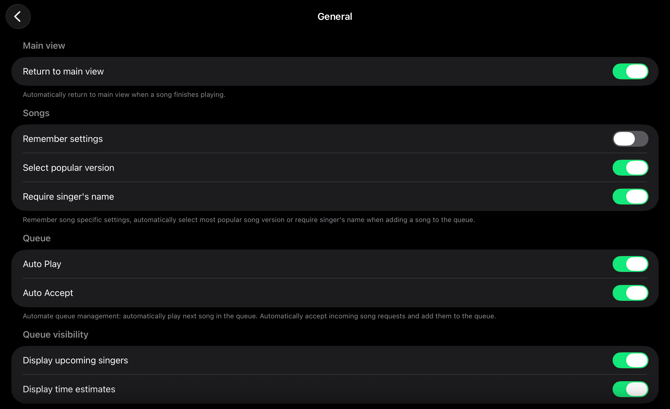
- Return to main view (Up to you)
- When ON, the app jumps back to the main Karaoke view when a song is about to end, making it easier for staff to follow who's up next in case they're checking e.g. Settings or Background music.
- Remember Settings (Off)
- When ON, the song version, pitch, vocals and tempo settings you have chosen for a song will be remembered for when the song is added to the queue again later.
- Select popular version (On)
- When ON, the most popular version of the song will be automatically chosen. This is fine for the vast majority of guests.
- Require Singer's name (On)
- When ON, every song request needs to have a name on it before the request can be sent or added to the queue.
- Auto Play (On)
- When ON, the next song in the queue is automatically played after the previous one ends to give your customers an automated karaoke experience.
- Top tip: Use the Ad manager to extend the time between songs to allow for a smoother switch between singers, while also pushing specials, offers or events.
- Auto Accept (On)
- When ON, the requests from a Singa Discovery Station and mobile requests will automatically be added to your queue.
- Display upcoming singers (On)
- When ON, you can see the upcoming singers' names at the bottom part of the screen.
- Display time estimate (Up to you)
- When ON, you can see the time estimates at the bottom part of the screen.
- Clear queue
- Press the Clear queue button and confirm to remove all songs left in the queue. Now you have a fresh start for the next karaoke evening.
- Press the Clear queue button and confirm to remove all songs left in the queue. Now you have a fresh start for the next karaoke evening.
If you can't find your answer, don't worry! You can chat with us by clicking the chat button in the bottom right corner. Outside our support hours, our Customer Support Bot will help you out in the chat!