![logo.svg]](https://help.singabusiness.com/hubfs/logo.svg)
System Requirements
| Windows | Mac | |
|---|---|---|
| Operating system | Windows 10 or later | macOS 12 or later |
| Download size | 138.3 MB | 250.1 MB |
For Mac
Start by heading to pro.singa.com/download, or when logged into the Singa Pro interface on your browser, click the profile icon in the bottom left corner, and press the "Download Desktop App" button.
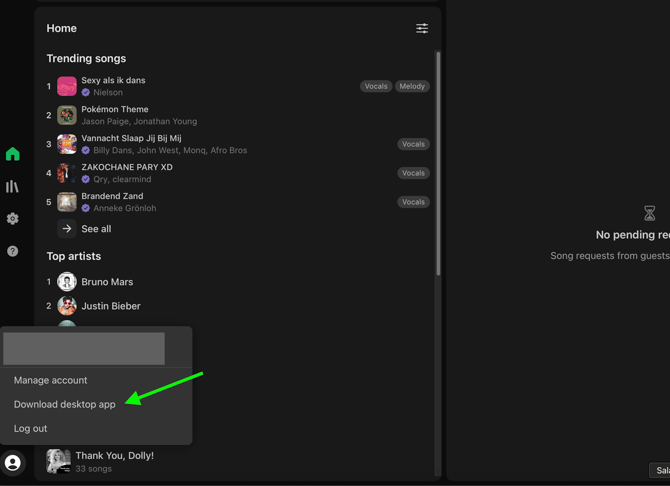
How the download process looks like inside the browser version of Singa Pro.
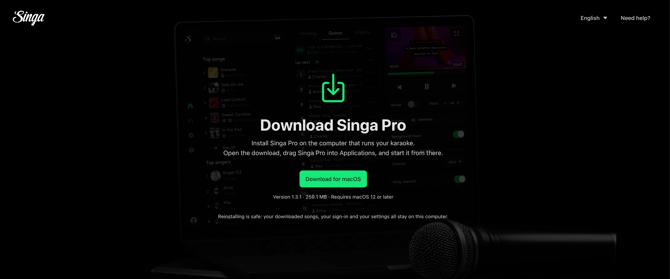
How the download process looks on the pro.singa.com/download website.
After the installation file has been downloaded, head to Finder > Downloads and find the file there (a file starting with singa-pro-). Double click the .dmg file, which prompts you to drag and drop the Singa Pro-app to your Applications folder.
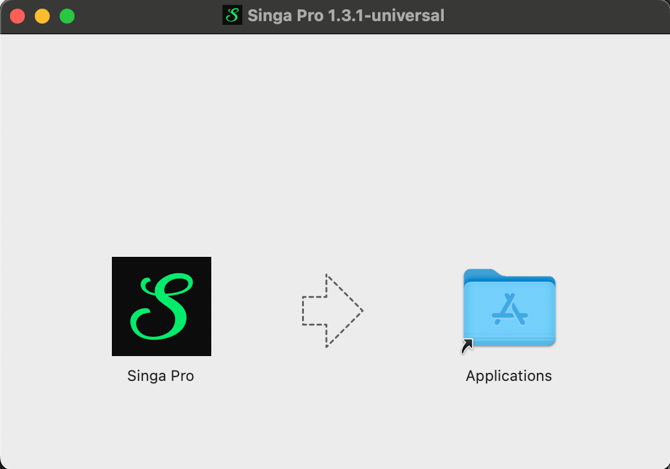
What you will see after double clicking the .dmg file.
After you've gone ahead and done the installation process, open up Singa Pro from your applications folder. Sign in with your details and you are ready to sing!
For Windows
Start by heading to pro.singa.com/download, or when logged into the Singa Pro interface in your browser, click the profile icon in the bottom left corner and press the “Download Desktop App” button. Open the download and Singa Pro installs and starts on its own.
NOTE: Windows automatically pops up a window with the text "Windows protected your PC" when this happens, click "more info" and the "run anyway" button appears. This allows you to bypass the check and install the software.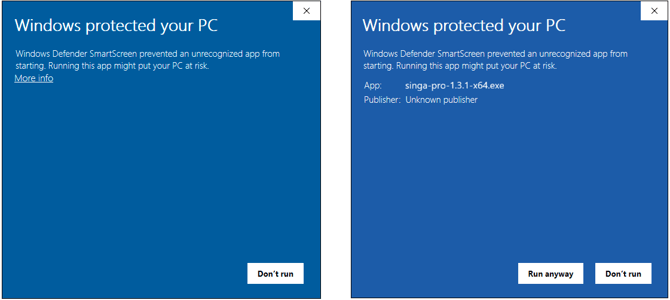
Once the installation is complete, you can open Singa Pro from the Start menu or from the desktop shortcut and log in with your details to start singing.