![logo.svg]](https://help.singabusiness.com/hubfs/logo.svg)
What’s different in the desktop app
- You can download songs to play offline.
- You can search and sort your downloaded songs.
- You can manage your downloads and storage in the app settings.
How offline mode works
While you’re online, Singa Pro automatically downloads the songs in your queue. If the connection drops, playback carries on from the songs that have finished downloading. Any song in the queue that hasn’t downloaded yet is skipped, and you’ll see the message “[song] isn’t downloaded. Skipped to the next downloaded song.” To check that your whole queue is ready, look at the Queue ready for offline count.
If you turn on Automatic downloads, Singa Pro also downloads songs your venue is likely to play in the background. It starts with your recently played songs, then your favorites and playlists, and then the most popular songs in your country and worldwide. That way more of the catalog is available without a connection.
Before you go offline
- License: Downloads need an active Singa Pro license. On a demo account you’ll see “Downloads need a license”.
- First sign-in: You need to sign in while online at least once on each computer. After that, Singa Pro can start without a connection.
- Offline time limit: Singa Pro has to go online now and then to check your license. Three days before the offline period ends, you’ll see “Offline playback ends soon. Connect to the internet before [date] to keep playing.” If you haven’t reconnected by then, new songs won’t play until you’re back online. Your downloads and queue are kept.
- Song requests: Song requests only work with an internet connection.
Offline settings
You’ll find all offline settings in Settings > Downloads.
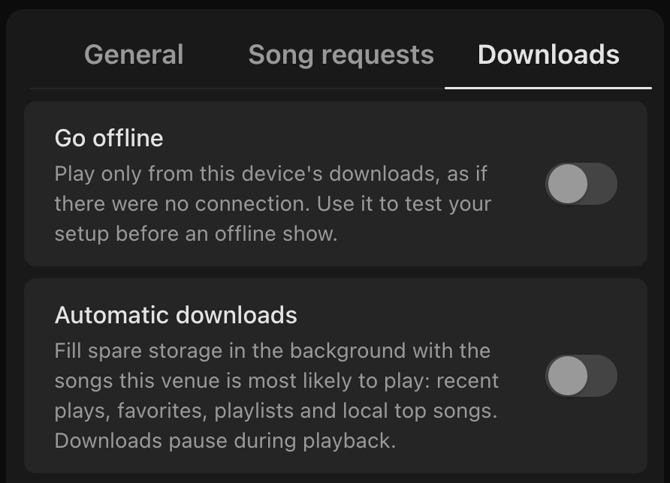
Go offline
Plays only songs already downloaded to this device, as if there were no internet connection. Use it to test your setup before an offline show and check that the songs you need are available.
Automatic downloads
Uses spare storage to download the songs your venue is most likely to play in the background. It starts with your recent plays, then your favorites and playlists, and then the top songs in your country and worldwide. Downloads pause during playback, so they won’t affect your show.
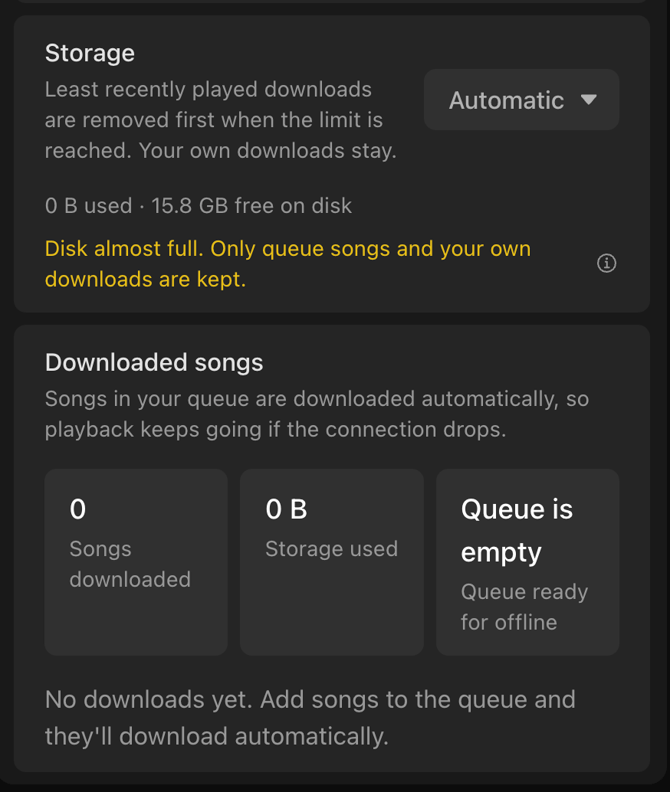
Storage
Sets how much disk space Singa Pro can use for downloads. It’s set to Automatic by default. On Automatic, Singa Pro always leaves 20 GB of your disk free and uses up to 90% of the remaining space. You can also choose a fixed limit of 10, 25, 50, 100 or 250 GB. When the limit is reached, the least recently played downloads are removed first. Songs you’ve downloaded yourself are never removed this way.
Below the setting, you can see how much space your downloads take up and how much free space is left on your disk. If your disk is almost full (less than 20 GB free), Singa Pro keeps only the songs in your queue and the ones you’ve downloaded yourself.
Downloaded songs
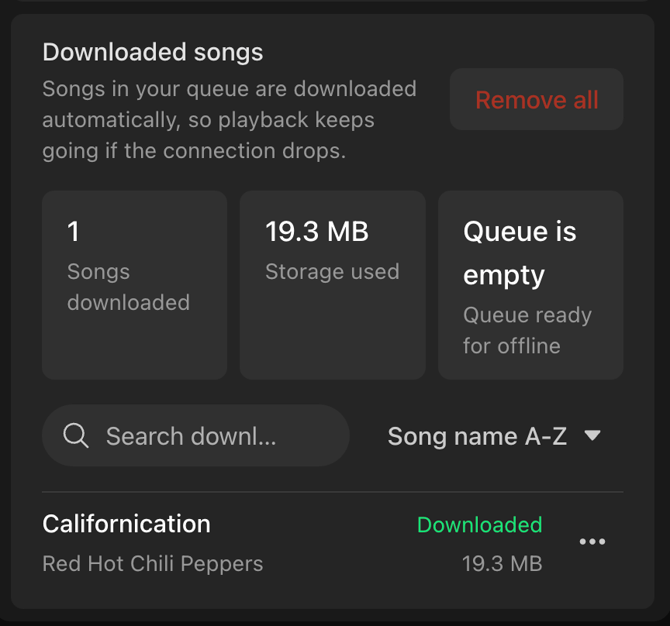
This section shows:
- Songs downloaded: how many songs are saved on this device
- Storage used: how much space they take up
- Queue ready for offline: how many songs in your current queue have been downloaded, for example 1/1
You can search your downloads, sort them (for example by song name A–Z), and manage individual songs from the “…” menu next to each one. To clear everything at once, click “Remove all”.
Download songs yourself
You can also download specific songs or whole playlists:
- Song: Open the “…” menu next to the song, or right-click it, and select Download.
- Playlist: Open the playlist’s “…” menu and select Download playlist.
The “…” menu has these options:
- Keep downloaded / Allow automatic removal: Choose whether the song is protected from automatic removal.
- Remove download: Deletes the song from this device. Songs in your queue can’t be removed. They show “In the queue, can’t remove”.
- Retry download: Only appears if a download failed.
Songs you download this way are marked Kept downloaded and are never removed automatically.