![logo.svg]](https://help.singabusiness.com/hubfs/logo.svg)
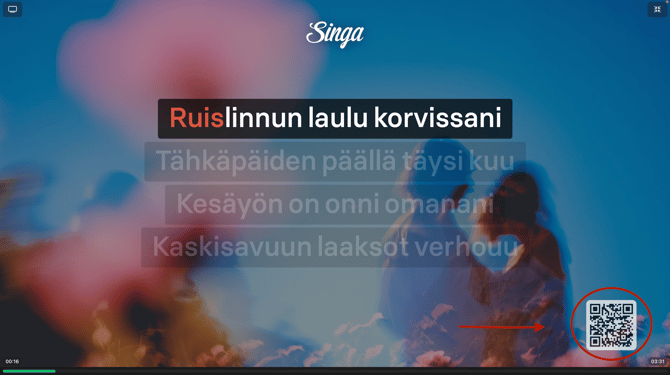
Open your phone's camera and scan the QR code displayed on the karaoke screen.
If a song is currently playing, you can find the QR code in the bottom-right corner of the screen.
Tap the link that appears on your phone to open Singa's song catalogue.
2. Find a song
Use the search bar to search for songs, artists or playlists, or browse the catalogue to find something you want to sing.
Tap an artist to browse their available songs.
3. Select your songTap the song you want to sing to open the song request window.
Depending on the song, you may be able to choose between different:
- Versions – Select the version of the song you want to sing.
- Guide vocals – Some songs offer a version with vocals to help you sing along.
- Pitch – Adjust the key of the song up or down if needed.
Enter your singer name. This is required and will be shown on the karaoke screen when it's your turn.
4. Add the song to the queueTap Add song to Queue.

You'll see a confirmation when your request has been successfully sent. Your song is now in the room's karaoke queue.
You can continue browsing and add more songs whenever you like — there's no need to scan the QR code again as long as the page remains open on your phone.
Having trouble requesting a song?
Make sure you scanned the QR code from the correct karaoke room. Each room has its own unique QR code, and songs requested through it are added to that room's queue.