![logo.svg]](https://help.singabusiness.com/hubfs/logo.svg)
1. Manually from the Singa Pro Web Dashboard
- Use the Search bar at the top left corner of your main dashboard.
- Type in the name of the song or artist.
- Click the song, enter the singer’s name (if your settings require it), adjust the pitch or tempo if necessary, and click to add it to the queue.
2. By Customers via QR Code or Web Link
Your guests do not need to download a separate app to request songs. They can connect directly to your venue's live session using their smartphone browser.
Navigate to Settings (gear icon) > Song requests to manage how customers connect:
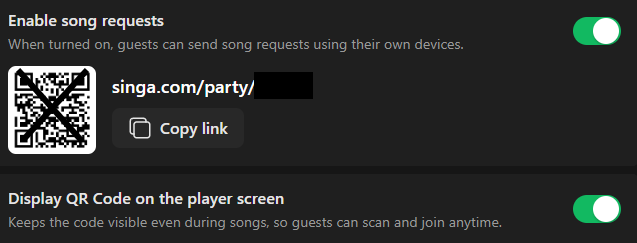
- Enable song requests: Ensure this toggle is turned ON so guests can send requests using their own devices.
- Share the Link / QR Code: You will see a unique web link (e.g.,
[singa.com/party/XXXX]) and a QR code for your venue. You can click Copy link to share it digitally, or print the QR code for your tables. - Display QR Code on the player screen: Turn this toggle ON to keep the QR code visible on the external karaoke screen even during songs. This allows new guests to scan and join the party at any time without asking the host.
Once connected, guests can browse the entire Singa catalog and send their requests. Depending on your Auto Accept settings, these requests will either drop directly into your active queue or wait in the Pending tab on your dashboard for your approval.
How to stop accepting song requests
If it is getting close to closing time or your queue is completely full, you can easily stop accepting new requests.
- Simply toggle Enable song requests (or the Song requests toggle on the right panel of your main dashboard) to the OFF position.
- Connected guests will be notified that the venue is no longer taking new requests.
If you can't find your answer, don't worry! You can chat with us by clicking the chat button in the bottom left corner. Outside our support hours, our Customer Support Bot will help you out in the chat!