![logo.svg]](https://help.singabusiness.com/hubfs/logo.svg)
Staff view (KJ mode)
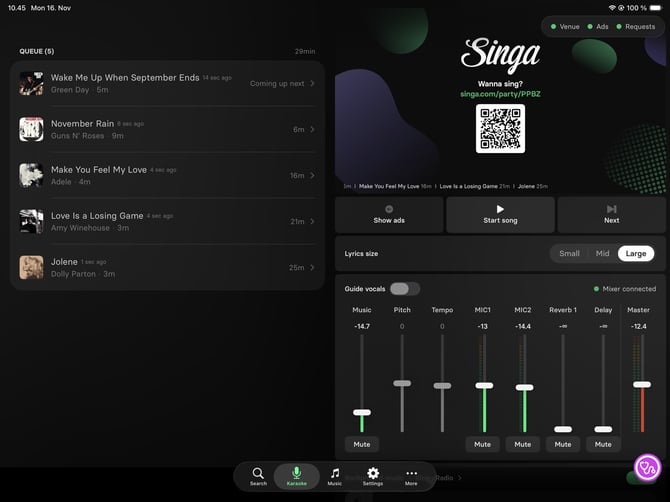
In KJ mode, the mixer appears under the karaoke controls as a fader strip with:
- Music level
- Each mic, with its own mute button
- Your venue's effects, such as Reverb and Delay
- Master level
- Pitch and Tempo for the current song
Live level meters show at a glance whether a mic is sending signal.
Guest view (Kiosk and Box mode)
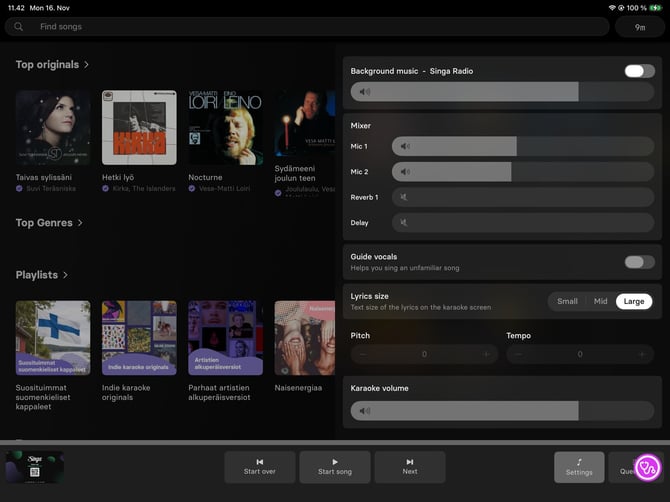
In Kiosk and Box mode, guests open simple sliders from the Settings button. The sliders sit behind a button, so browsing songs never changes the levels by accident.
- Master is hidden from guests unless your staff allow it.
- With Reload after a guest session turned on, the mixer goes back to your venue's own preset when a Box or Kiosk session ends, so every party starts from the same sound.
Advanced settings stay on the mixer
EQ, gates and other advanced settings are not in the Singa app. They stay in the Soundcraft web console, which you can still open from the Mixer tab. Guests never see these settings.
What You Need
- Singa iPad app version 2.35.0 or newer
- The iPad and the mixer on the same stable local network
- The mixer's IP address, ideally a fixed one
- Local network access allowed for the Singa app on the iPad
- A Show and Snapshot saved on the mixer with your venue's levels
How to Get Mixer Controls for Your Venue
Mixer controls are in early access, so they are switched on venue by venue. To get started, contact our support team or your Singa contact and tell us:
- Your venue and the room(s) where you'd like to use it
- Your mixer model (Ui12, Ui16 or Ui24R)
- The mode you use: KJ, Kiosk or Box
We'll switch the feature on for your venue and let you know when it's ready. Mixer controls are included in the Singa Business and Singa Business Box subscriptions.
How to Set Up Mixer Controls
Step 1: Update the Singa app
Make sure the Singa iPad app is on version 2.35.0 or newer.
Step 2: Connect the iPad to the mixer's network
Connect the iPad to the same local network as your Soundcraft mixer.
Step 3: Enable the mixer
Go to Settings > Mixer, turn on Enable mixer and enter the mixer's IP address.
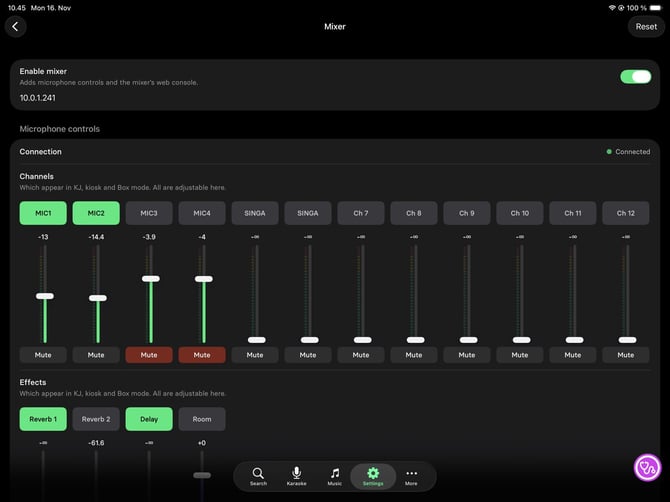
Step 4: Allow local network access
When the iPad asks, allow the Singa app to access the local network. Once connected, you'll see Connected next to Connection.
Step 5: Choose the mics to show
Under Channels, tap the mic channels you want to show. The channel names come from your mixer.
Step 6: Choose the effects to show
Under Effects, tap the effects you want to show, such as Reverb 1 and Delay.
The channels and effects you select appear in KJ, Kiosk and Box mode. You can adjust all of them on this page.
Step 7: Pick your Show and Snapshot
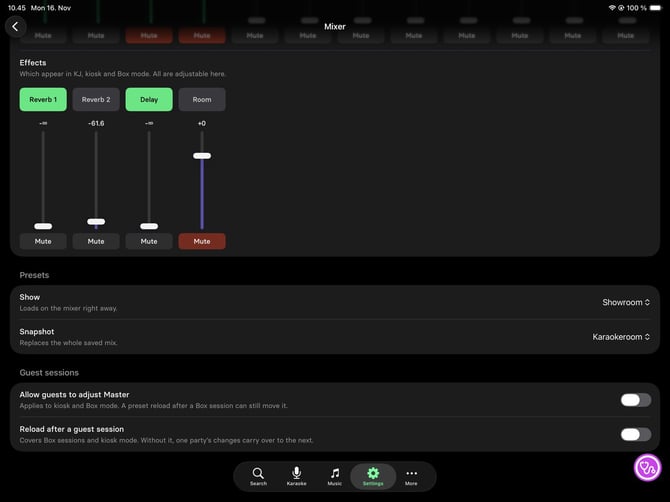
Under Presets, pick your venue's Show and Snapshot.
- Show loads on the mixer right away.
- Snapshot replaces the whole saved mix.
Step 8: Set the guest session options
Under Guest sessions:
- Turn on Reload after a guest session. Without it, one party's changes carry over to the next.
- Decide whether to turn on Allow guests to adjust Master. This applies to Kiosk and Box mode.
Step 9: Test everything
Test each mic, the level meters and the mute buttons. Then end a Box session to check that the levels reset to your preset.
Supported mixers
-
Soundcraft Ui12
-
Soundcraft Ui24R
-
Soundcraft Ui16
Frequently Asked Questions
Does this replace the Soundcraft app?
No. Advanced settings, such as EQ and gates, stay in the Soundcraft web console in the Mixer tab.
Can guests make it too loud?
Not through Master, unless your staff allow it. With Reload after a guest session turned on, levels reset after each party.
We have a Behringer, Yamaha or another mixer. Can we use this?
Not yet. Mixer controls currently support Soundcraft Ui mixers only. Do you have some mixer which you would like to control through Singa? If so, reach out to your Customer Success Manager or Customer Support so we can plan future releases.
The mixer won't connect. What can I do?
Check that:
- The iPad and the mixer are on the same network.
- The IP address in Settings > Mixer is correct.
- Local network access is allowed for the Singa app in the iPad's settings.
- The Singa app is on version 2.35.0 or newer.