![logo.svg]](https://help.singabusiness.com/hubfs/logo.svg)
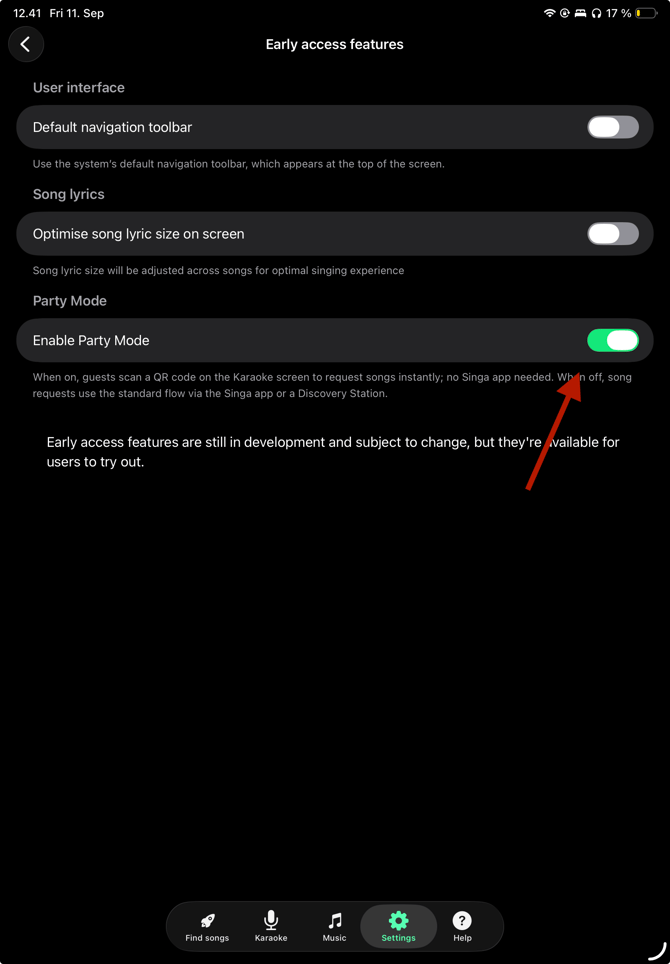
1. Open Early access features
Open Singa Pro and go to Settings from the bottom bar.
Scroll down until you find Early access features.
2. Enable Party Mode
Under Party Mode, switch Enable Party Mode on.
There is no separate save button, so once the setting is enabled, you can return to the main view.
After enabling Party Mode, close Singa Pro completely and restart the app. This step is important to make sure song requests work correctly.
3. Enable Song requests
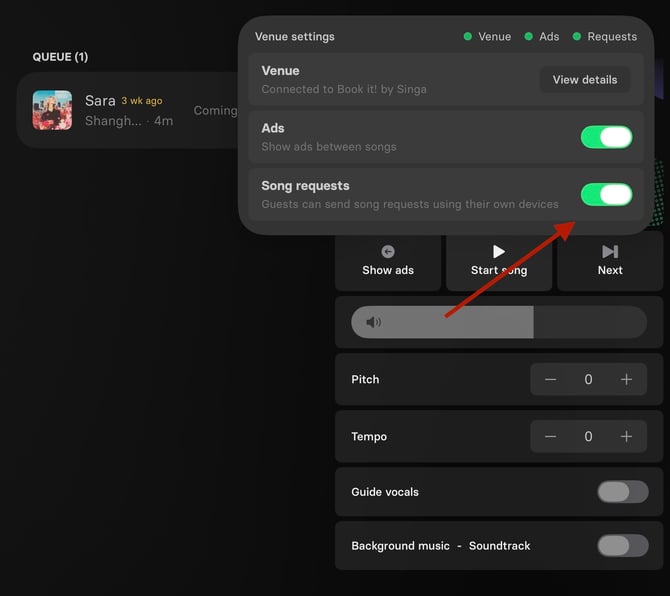
Once Singa Pro has restarted, open Venue settings from the top of the karaoke view.
Make sure Song requests is enabled.
When everything is connected correctly, the Venue, Ads, and Requestsindicators should all be green.
4. Check the QR code
Party Mode is now ready to use!
A QR code will appear on the karaoke screen. Guests can scan this code with their phones to browse the song catalogue and add songs to the queue.
When a song is playing, the QR code remains visible in the bottom-right corner of the karaoke screen.
5. Update Your Discovery Stations
If your venue uses Discovery Stations, they need to be switched over when Party Mode is on.
- Party Mode ON: Discovery Stations run at singa.com/discovery
Do this on every Discovery Station device at the venue. A station left on the old "Check-in" address will not pass song requests to the queue while Party Mode is on.
Tip: To return a Discovery Station to the login screen, press and hold the Singa logo in the top left corner of the page for five seconds. Five seconds is longer than it feels, so keep holding.
Party Mode can be switched on room by room or venue by venue, and switching it back off is just as easy. Whichever way you switch it, point the Discovery Stations at the matching address.
Party Mode not working?
If Party Mode or the QR code isn't working as expected:
- Make sure Enable Party Mode is switched on.
- Make sure Song requests is enabled.
- Completely close and restart Singa Pro after activating Party Mode.
- Check that the Venue, Ads, and Requests indicators are green.
- If your venue uses Discovery Stations, make sure they are logged in at singa.com/discovery, not checkin.singa.com.
If you can't find your answer, don't worry! You can chat with us by clicking the chat button in the bottom right corner. Outside our support hours, our Customer Support Bot will help you out in the chat!