![logo.svg]](https://help.singabusiness.com/hubfs/logo.svg)
Please follow these steps to extend the screen when using Singa Pro on a Windows computer:
- Connect your computer to the external screen using HDMI and set the TV to the correct source channel
- On the Windows computer’s keyboard, press the Windows flag button and the P button at the same time, and then release.
- Select Extend from the list that appears
- Once Extend is selected, your computer’s background screen will appear on the external monitor
- Open the browser
- Go to pro.singa.com and sign in using your Singa credentials.
- Tap the Cast to 2nd screen button in the lower left corner of the song player
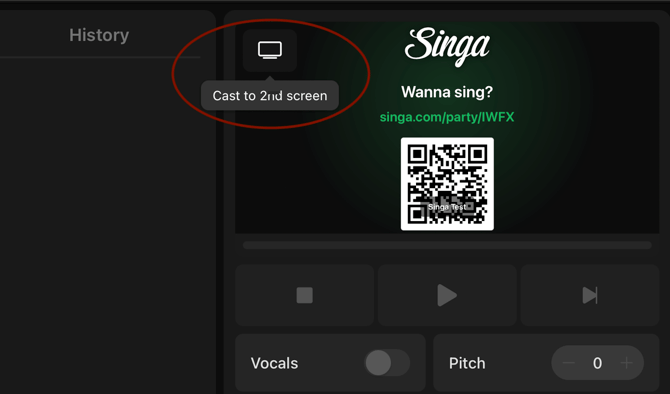
- Drag the pop up window to the desired screen
If you are running on a Mac, here's how to select the Extended mode. The rest of the steps are the same.
Apple provides a detailed guide for connecting to an external display
https://support.apple.com/en-us/HT202351#extended