![logo.svg]](https://help.singabusiness.com/hubfs/logo.svg)
You can access the new Admin page by visiting beta..admin.singa.com and logging in with your Singa Pro credentials, which were sent to you in the onboarding email. Because the Admin page is browser-based, you can use any computer to sign in. In this article, we will introduce the various sections of the Admin page and provide a brief explanation of their functions.
Venues
In the Venues section, you will find all venues under your organization. By clicking the desired venue, you are able to customize settings specific to that venue.
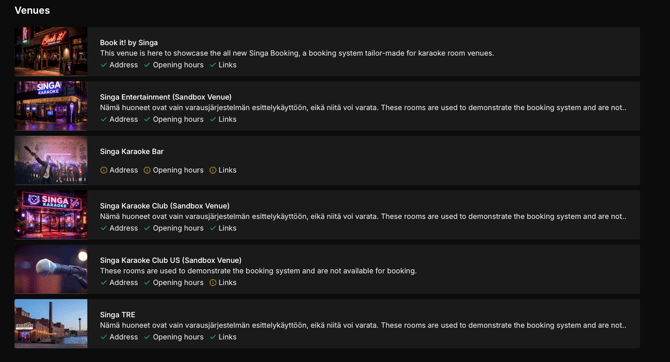
An example of how the Venues page looks like.
Venue editor
From Venue Editor, you can update your selected venue's information, which will be displayed in the Singa mobile app and on the Venues page on Singa's website.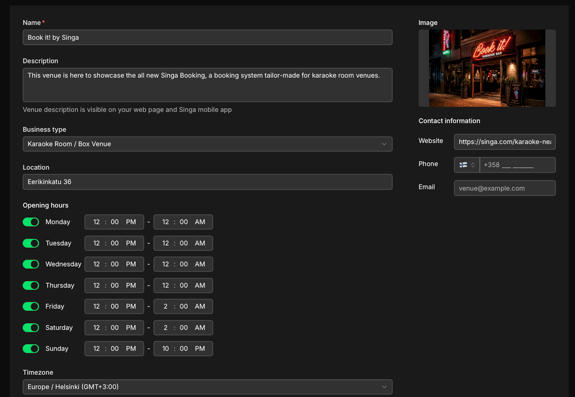
This is what you see when you select the desired venue.
Settings inside the Venue editor
- Public – Set your venue to either Public or Private
- Description – A brief description to inform customers about your venue.
- Business type – Specify to your customers the type of your venue, ranging from a hotel to a mobile DJ setup
- Location – Your venue's address will appear in the app and online.
- Opening hours – Set up your venue's business hours. Make sure to update and maintain your operating hours regularly so customers are able to find the correct information at all times. (Make sure you check that your timezone is set correctly.)
- Services (Available with Singa Booking) – Set up your venues booking offering for customers, from which they are able to choose the service that best suits their needs. More about Service catalog here
- Discoverability – You can set your Venue as Listed and available on the public search inside the app, or private and accessible via direct link
- Image – A profile image for your venue must be max 20 MB and have a minimum of 1227x690 px resolution to ensure highest possible quality.
- Cancellation Policy – Your custom policy on cancellations This will be shown to customers when making a booking.
Please remember to save your changes after updating the settings. The Save button is located at the bottom of the page.
Services & Pricing
In this page, you are able to set up all the services & their pricing, which are listed for your customers when looking at your Singa Booking page.
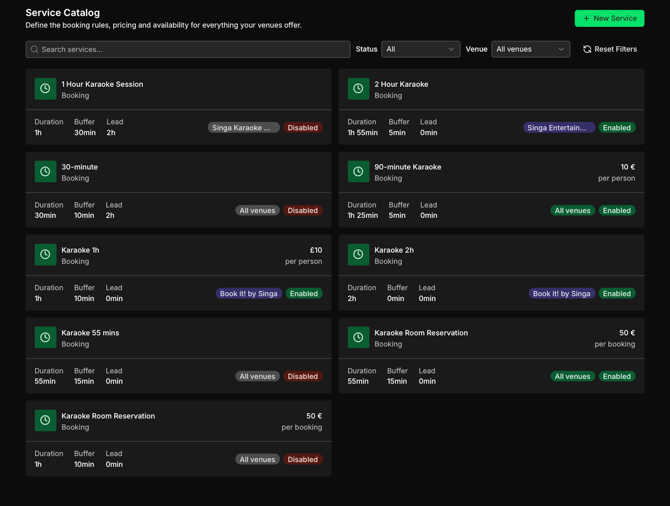
An example of how your services & their pricing could be set up.
Setting up a new service
By clicking + New Service on the top right corner, you can set up a service module.
Service Name — the label for this bookable service, shown to customers (e.g. "Karaoke 1h").
Enabled — toggles whether customers can currently book this service.
Duration — how long one booking of this service lasts. Preset options (15 min–8h) or a custom length
Pricing — sets the price model (per service, per person are currently available), the amount, and the currency.
Available at — which venues offer this service. Currently set to all venues in the organization.
Under the "Show advanced options" you can find:
Buffer times — adds padding time before and/or after each booking for setup/cleanup. Currently on: 10 min buffer, applied after the booking.
Booking window — restricts how far in advance a booking can be made (e.g. no more than 2 weeks ahead).
Cancellation — allows customers to cancel free of charge up until a set deadline before the booking.
If these are not changed, our default settings are applied: 10 minute buffer before/after each booking, no booking window, no cancellation deadline
After you are done setting up the new service, click "Create Service on the top right corner, and it will be added to your public list of services available (Make sure you have the "Enabled" turned ON (Will show up as green)
In-Venue Content
This page gives you a complete overview of every advertisement running across your venues. Ads are grouped by venue, showing each one's live status, thumbnail, filename, display duration, and the days/hours it's scheduled to play. Use the search bar and scope or advertisement-type filters to narrow the list, or switch the grouping to organize ads differently. Read more about ads here
Content Filtering
This page lets you control which songs, artists, and genres customers can select at your karaoke venue, whether by blocking explicit content outright or blocking specific titles by name.
Block explicit content — a toggle to prevent any song tagged as explicit from being playable at this venue. Currently off.
Songs / Artists / Genres tabs — three separate blocklists you can manage; the badge on each shows how many entries are currently blocked (1 song, 0 artists, 0 genres).
Blocked songs — the list of songs currently blocked at this venue, shown as removable tags. "Bohemian Rhapsody" is blocked here, with a "Clear all" option to reset the list.
Search or select to block songs — a search field to find songs by title; results appear below with the artist and year, letting you add (+) or see that a version is already Blocked
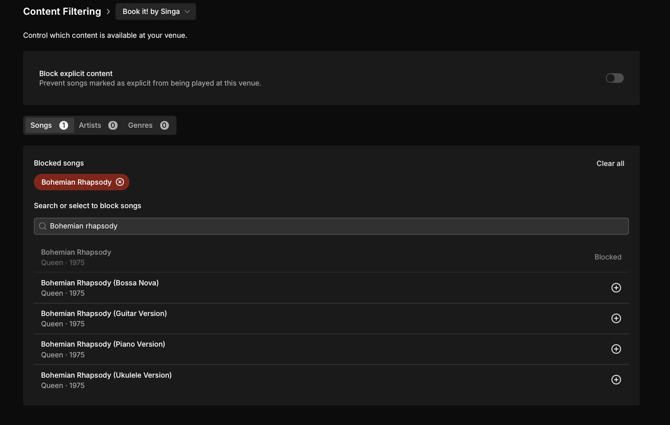
Song catalog
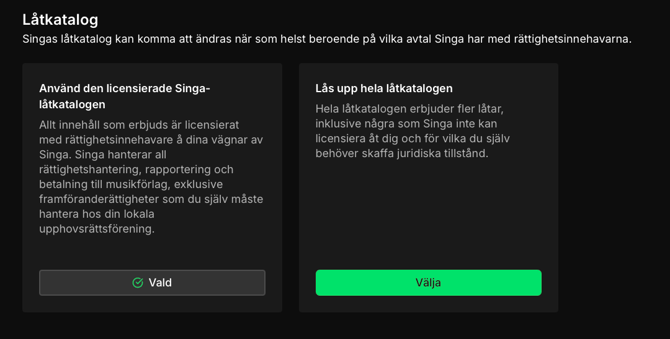
This page lets a venue choose which song catalogue option to use for karaoke, since Singa's offering can change based on their licensing agreements with rights holders.
Use the licensed Singa song catalogue — the default, safer option. Singa handles licensing, reporting, and payment to Music Publishing companies for all included songs (except Performing Rights, which the venue must still arrange with its local Collecting Society). Currently selected.
Unlock the whole song catalogue — a broader option with more songs, but it includes tracks Singa cannot license on the venue's behalf, meaning the venue would need to obtain those legal authorizations itself.
Songbooks
Here you can find Singa's latest songbooks. You can also access the songbooks by
clicking here
Growth
Marketing Kit
Here you'll find all Singa Business marketing materials that you can easily share to your customers. Behind the link here, you'll find both online and print materials as well as a Singa Premium special offer for your customers.
Widget Embed
This page walks a venue through embedding Singa's booking widget on their own website, in three steps: configure it, style it to match the site, then copy the generated code snippet.
Configure your embed — sets up the basics. Venue resource ID is auto-filled and read-only (pulled from the venue record). Your website origin is required, since it's used as the postMessage target for the widget's booking-confirmed callback. Default language sets which language the widget displays in.
Theme & branding — customizes the widget's look to match the venue's site, with a built-in contrast checker so the booking flow stays readable. Color mode toggles dark/light (dark is Singa's default). Button background lets you pick a preset or custom hex color. Button text color can be auto-selected for best contrast, or forced to white/black/custom. A contrast ratio readout confirms the chosen colors are accessible (e.g. passing both AA and AAA).
Copy & paste on your site — the final step: an HTML snippet (a <script> tag pointing to Singa's embed.js, with the venue ID baked in) that updates live as you adjust settings above, plus a one-click "Copy snippet" button. Recommended placement is near the closing </body> tag for best load performance.
For developers: handle the booking-confirmed callback — an optional, collapsible section with code for listening to the postMessage event when a booking completes.
Live preview — shows how the widget will render on the actual site, with tabs for different widget states (Slots, Details, Done) and a device toggle (desktop/mobile), inside a mock browser frame at the configured website origin.