![logo.svg]](https://help.singabusiness.com/hubfs/logo.svg)
If you can't see the device on the Admin page under Sessions, you can add it back and connect to the room easily.
Note: If the iPad is still in Box mode while not showing on the Admin page, the two have lost the connection between each other. Start by exiting Box mode by tapping the room's name in the bottom right corner of the Pin code view or the timer in the top right corner if there is a session running. Enter your Singa password when prompted.
- Log in to the Singa Business Pro App with your Singa Pro credentials.
- Click
 Settings, choose Self-Service Karaoke, and tap Start next to where it says Box.
 - Please name your karaoke room, for example, Room 1, Blue Room, Karaoke Box iPad etc.
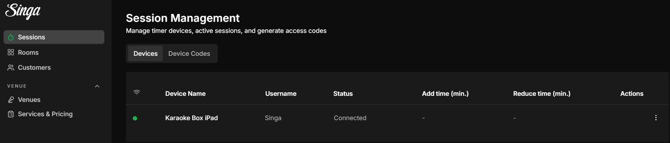
- Log in to the Admin page using your Singa Pro credentials. Under Sessions, you can see the added karaoke room.
The device will then show up on the Admin page like this:
If you can't find your answer, don't worry! You can chat with us by clicking the chat button in the bottom right corner. Outside our support hours, our Customer Support Bot will help you out in the chat!